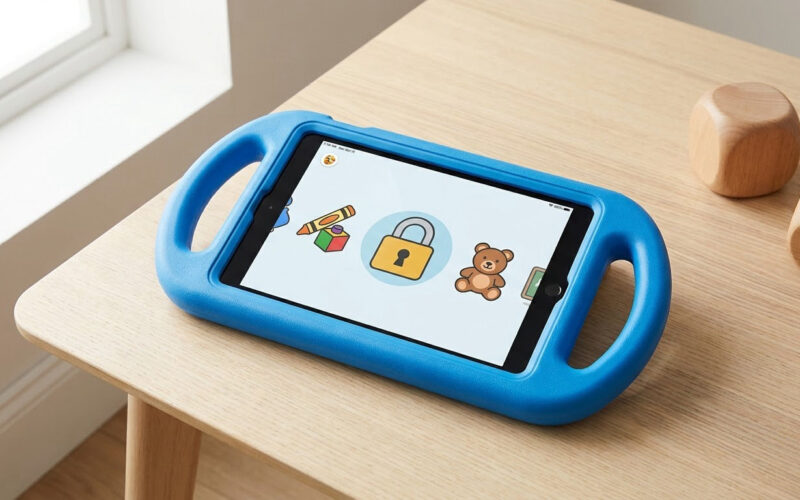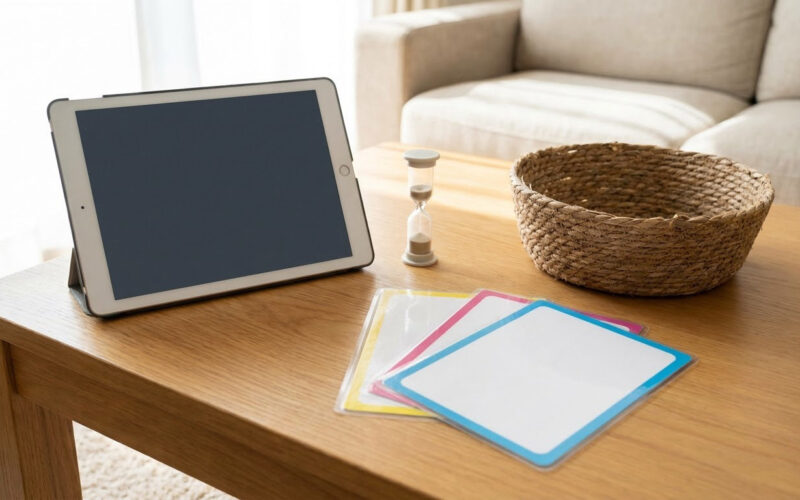
The difference is simple: a learning tool has a purpose attached to every session and sends your child back into the real world afterward. A babysitter takes about ten minutes of your attention and gives back a child whose attention span is now shorter.
Most families do not set out to hand over a tablet as a pacifier. It happens on a hard afternoon when you are cooking, working, or holding a crying sibling, and the tablet is the fastest thing within reach. Ten minutes of quiet turns into an hour of looping videos, and the next day you do it again a little earlier in the day.
Learning how to use a tablet as a learning tool instead of a babysitter is a setup problem more than a willpower problem. You decide the purpose before the screen comes on, you cut the device down to a handful of activities that require your child to do something, and you plan the off-screen part before the session starts. That takes about ten minutes of setup and about half an hour of practice.
Table of Contents
- What You Need
- Step-by-Step
- Step 1: Define the Learning Purpose
- Step 2: Set Up a Short, Predictable Routine
- Step 3: Use Child-Led, Interactive Activities
- Step 4: Add Accessibility Supports
- Step 5: Ask the Child to Use the Learning in the Real World
- Step 6: End, Review, and Reset
- Common Mistakes
- Handing over the tablet with no purpose
- Letting video be the default
- Making the activity too hard
- Rewarding every tap with more screen time
- Ignoring accessibility needs
- Never connecting the screen to anything else
- Using the tablet to hold your child for ten minutes
- Frequently Asked Questions
- Should I give my child a tablet before age 3?
- Can a tablet actually teach an autistic child, or is it just a distraction?
- Should my child use a tablet alone?
- How do I get my child off the tablet without a fight?
- When should I talk to my child’s doctor about screen use?
- A Simple Starting Point for Using a Tablet as a Learning Tool
What You Need
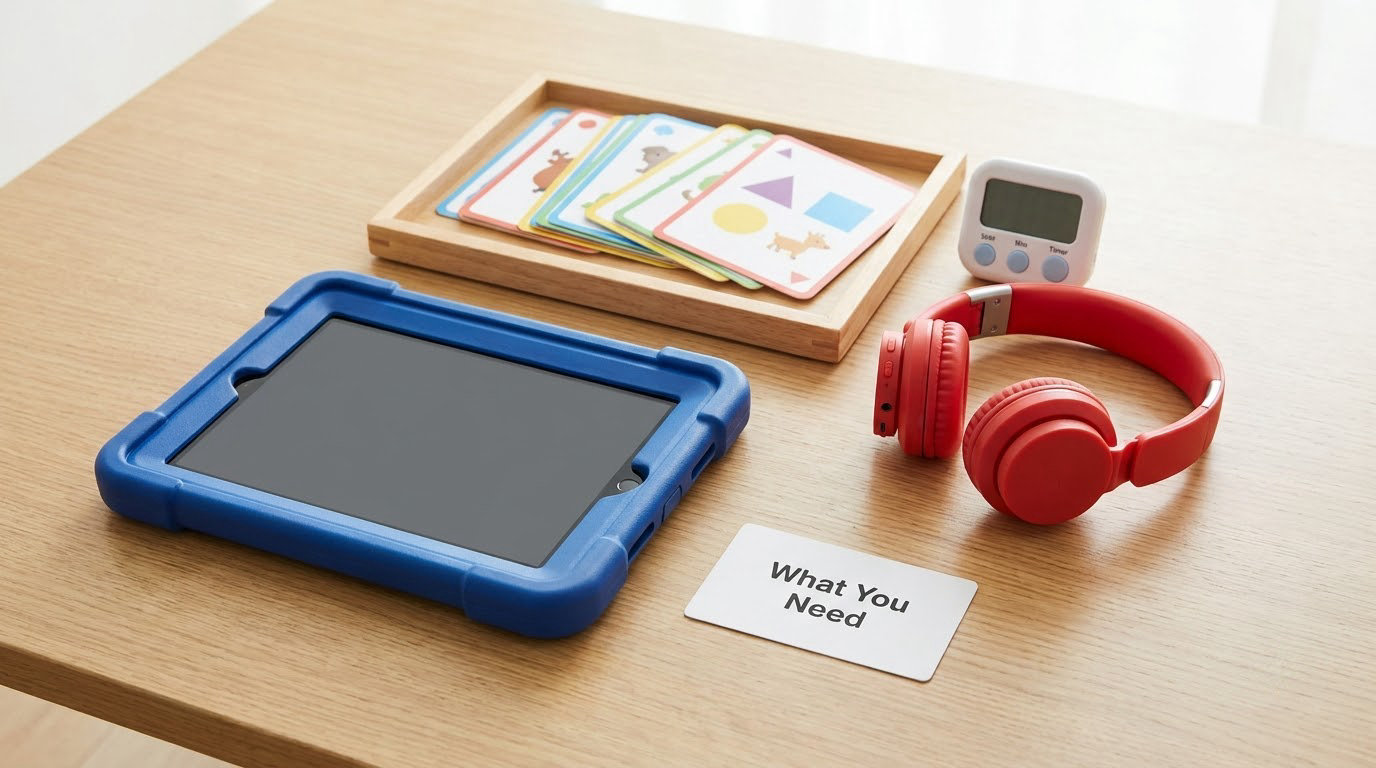
You do not need a new tablet. Most of this works on the device already in a drawer, running whatever operating system it came with.
- A shared device that lives in a common room. Not a bedroom, and not charged overnight in a private space.
- Parent or caregiver controls. On iPad that is Screen Time under Settings, on Android it is Digital Wellbeing or Family Link. Both let you lock app installation, set a schedule, and remove the browser from the home screen.
- One curated folder with six apps or fewer. Parents who switched from free roaming to a closed folder reported the biggest drop in end-of-session pushing.
- A visual timer. A kitchen timer or an app with a visible countdown. Autistic children in particular tend to handle a disappearing clock far better than an adult saying five more minutes.
- A first-then board. A picture of what comes next, kept in the same spot every time.
- One real-life follow-up. Something your child does away from the screen. This is the part that turns use into learning, and it takes about thirty seconds to plan.
Step-by-Step
Step 1: Define the Learning Purpose
Write down one skill before you open the app store. One skill, not three.
Good purposes are narrow enough that you can tell whether they happened. Naming colors, matching a word to its picture, following a two-step direction, sorting shapes by size, finding the letter sound in a familiar word. These work because you can watch for them and point them out afterward.
Weak purposes are things like learning or having fun or educational screen time. You cannot observe those, so they tend to drift into the video-watching default within a week. If you cannot describe what success looks like, it is not a purpose yet.
Step 2: Set Up a Short, Predictable Routine
Set the length by what your child can sustain on a good day, not a bad one. Twenty to forty minutes on a fixed schedule is the pattern most families land on, and predictability matters more than the exact number.
Run the same sequence each time: first-then reminder, session starts, one-minute warning, session ends, transition to the follow-up activity. Same order, same time of day, same chair. For children who are autistic or prone to sensory overload, the repetition itself is doing work, because nothing about the session is a surprise.
Park the device where it charges afterward. A tablet that lives on the counter has to be asked for; a tablet that lives in the bedroom gets negotiated for.
Step 3: Use Child-Led, Interactive Activities
If your child is watching, the tablet is a babysitter with better graphics. The test is whether their thumbs or voice are doing something.
Activities that count require tapping, dragging, sorting, matching, speaking, drawing, recording, or answering. A matching game where your child has to decide which shape goes where qualifies. An open-ended drawing or storytelling app qualifies because there is no correct answer to sit through. Flashcards with immediate feedback qualify.
Continuous video feeds of short clips do not, and neither does an app where every tap opens a new advertisement. Autistic children are especially drawn to short-form video loops because they are predictable and low-friction, which is exactly why those apps are the hardest to give back.
Let your child set the pace inside clear limits. You set the length, the activity, and the stopping point. They choose which shape, which story, which order.
Step 4: Add Accessibility Supports
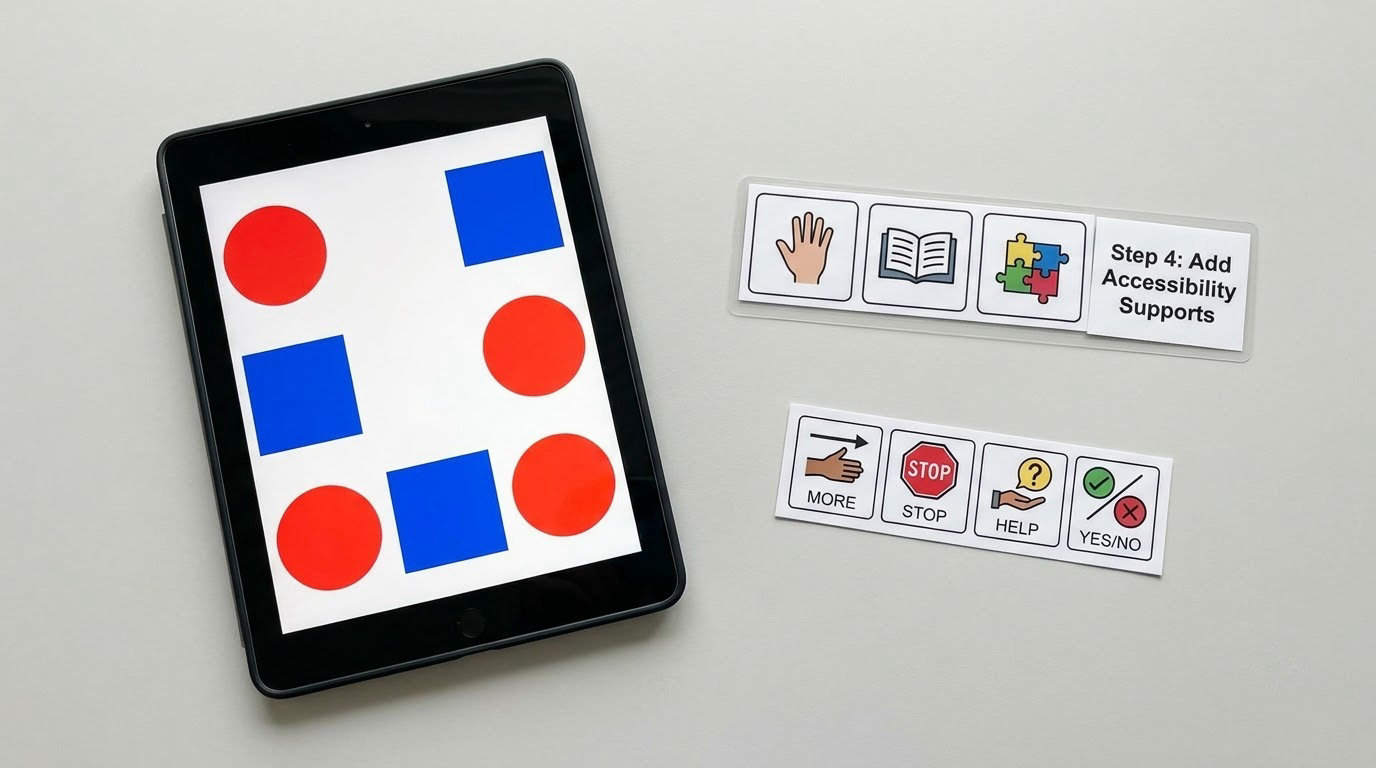
Accessibility settings are what keep an activity usable long enough for learning to happen. On iPad they sit under Settings, then Accessibility: Display and Text Size, Motion, and Touch. On Android look for Accessibility, Accessibility shortcuts, and Motion removal.
- Captions on by default for anything with sound.
- Reduce Motion or Remove Motion turned on, especially for children who flap, rock, or cover their ears at fast transitions.
- Larger text and bolder contrast if the activity involves reading or distinguishing shapes.
- Touch accommodations like Tap to Tap or AssistiveTouch, so a tap is repeatable and undoable.
- A visual schedule showing the whole session, not just the end.
- A communication card or AAC board kept beside the tablet, so wanting more, wanting help, and finished are all available without a meltdown.
- Extra processing time. Reading and comprehension questions in apps can be shortened, slowed, or read aloud for a child who needs more than the default three seconds.
Follow whatever your child’s care team already recommends. Supports work best when they match the settings a speech, occupational, or physical therapist has asked for, not a list pulled off the internet.
Step 5: Ask the Child to Use the Learning in the Real World
This is the step that separates a learning tool from entertainment, and almost nobody does it consistently. Before the session, decide one thing your child will do away from the screen.
- Name colors or shapes on the screen, then find five things in the house that are that color, out loud.
- Match a word to its picture, then find the same object in a real drawer and put it where it belongs.
- Practice counting or numbers, then count the stairs, the socks in the laundry, or the forks on the table.
- Draw something digital, then redraw the same picture on paper and sign it.
- Use the camera or a photo activity, then go take the matching photo for real and compare the two.
- Build a story or a sequence, then tell it to someone else or act it out.
- Work on phonics or letter sounds, then find three objects in the room starting with that sound.
- Finish a self-assessment or quiz review, then say one thing that was easy and one thing that was hard.
Keep it to a minute or two. If the follow-up feels like homework, skip it for that day and try the next pair instead.
Step 6: End, Review, and Reset
End at the planned stopping point even if the session is going well. Ending early teaches your child that the timer is real, and a timer that is sometimes real is the one that eventually gets respected.
Give a warning before the end. A visible timer with a short chime at the two-minute mark does most of the work; for autistic children, pairing the chime with the first-then board reduces the transition fight far more than words do.
Write down one observation while it is fresh. One sentence: matched six words independently, needed two prompts at the end, chose drawing over the quiz. Three or four weeks of these lines will show you more than any progress tracker inside an app.
Then close the folder, put the tablet back on its charger, and move to the follow-up. Resetting the physical space matters. A tablet left on the sofa after a good session becomes the next session.
Common Mistakes
Handing over the tablet with no purpose
Fix: say the purpose out loud before the screen turns on. Tomorrow we are matching the pictures to the words, then you are finding the spoons. Two minutes of naming the goal does more than twenty minutes of hoping it turns educational.
Letting video be the default
Fix: remove video apps from the home screen entirely, not just from the folder. Short-form clips are engineered for infinite replay, and a child who can find them will find them. Put them behind a parent passcode if you need them at all.
Making the activity too hard
Fix: sit with your child for the first minute. If two wrong answers in a row cause frustration, drop the level. Frustration on a screen is the same as frustration anywhere, and it ends the session just as fast.
Rewarding every tap with more screen time
Fix: keep the finish fixed. Tablet time does not convert into tablet time, and bargaining on it teaches children that screen is a currency to be spent. If you want a reward, use something off the screen.
Ignoring accessibility needs
Fix: set up captions, reduced motion, larger text, and a communication card before the first session rather than during a meltdown. Most of the conflict parents describe as behavior is really an access problem wearing a disguise.
Never connecting the screen to anything else
Fix: keep a running list of off-screen pairings in a notes file on your phone, and pick one per session. Without a plan it never happens, because the off-screen part is the part you are too tired for.
Using the tablet to hold your child for ten minutes
Honestly? Sometimes that is the right call, and it is not a failure.
Cooking dinner with a child under four and a new baby on your hip is not a character-building moment. Give yourself the ten minutes, but hold the line that it is ten minutes and one chosen activity. The families who describe this honestly tend to be the ones whose sessions actually stay short, because the tablet has a defined job instead of becoming the default.
A useful middle ground is a co-viewing setup: one specific show or audio routine that your child uses alongside you rather than alone. Shared use tends to produce more talking and less melt-down at hand-off, and it models the screen as something people do together.
Frequently Asked Questions
Should I give my child a tablet before age 3?
Most guidance, including the American Academy of Pediatrics family media plan, recommends keeping children under 18 months away from screens other than video calls, and limiting non-video screen use between 18 and 24 months with an adult watching. Past age 2, short sessions with a named purpose and an adult nearby work better than anything longer. If you do start earlier, keep it to one specific video chat or audio routine rather than general access. Ask your own pediatrician what fits your child.
Can a tablet actually teach an autistic child, or is it just a distraction?
Both can be true at once, which is why the setup matters more than the device. Many autistic children use screens for regulation because predictable visuals and controlled input feel calmer than a noisy room, and that use is legitimate. The risk is that regulation turns into open-ended scrolling. Keep the app list closed, use the same routine every time, and build in sensory supports like reduced motion, captions, and a visual timer. Follow whatever your child’s own care team recommends.
Should my child use a tablet alone?
Solo use is fine for practice that carries low risk of frustration: matching, drawing, familiar games, and reading. Keep an adult nearby for anything with timer pressure, purchases, open-ended creative apps, or anything your child tends to escalate on. Content-wise, a simple split works well: anything with ads or random video feeds stays adult-only, and the small set of skill-building or creative apps can be solo. Review that list every few weeks as your child grows.
How do I get my child off the tablet without a fight?
Give a warning before the end rather than taking it away, and use a visible timer so the stopping point is not a surprise. Pair the on-screen timer with a first-then board that shows what comes next, and always move into something you named in advance, not something improvised. Ending early on purpose, once or twice a week, builds the idea that the timer is honest. Words during the fade-out usually add to the fight rather than reducing it.
When should I talk to my child’s doctor about screen use?
Talk to your pediatrician or your child’s care team if screen use is interfering with sleep, replacing sleep or physical activity, causing skin irritation from dropping the device, or becoming the only way your child can regulate. It is also worth raising if you are unsure how much is appropriate for your child’s age or developmental profile, or if your child has a condition that affects vision, hearing, or sensory processing. Bring specific observations rather than a general worry: minutes per session, what the activity was, and what happened at the end.
A Simple Starting Point for Using a Tablet as a Learning Tool
Pick one real-life skill your child is working on, choose one interactive activity that practices it, set a twenty-minute session with a visible timer on a fixed time of day, and name the follow-up before the screen goes on. That is the whole plan.
Run that three times before changing anything. When you add a new activity, add the off-screen part with it, because the second half is what parents tell me they forgot at first, and it is the half that turns watching into doing.
And if you hand it over to cook dinner on a rough evening, that is fine too. Ten minutes, one chosen activity, then the tablet goes back on its charger.