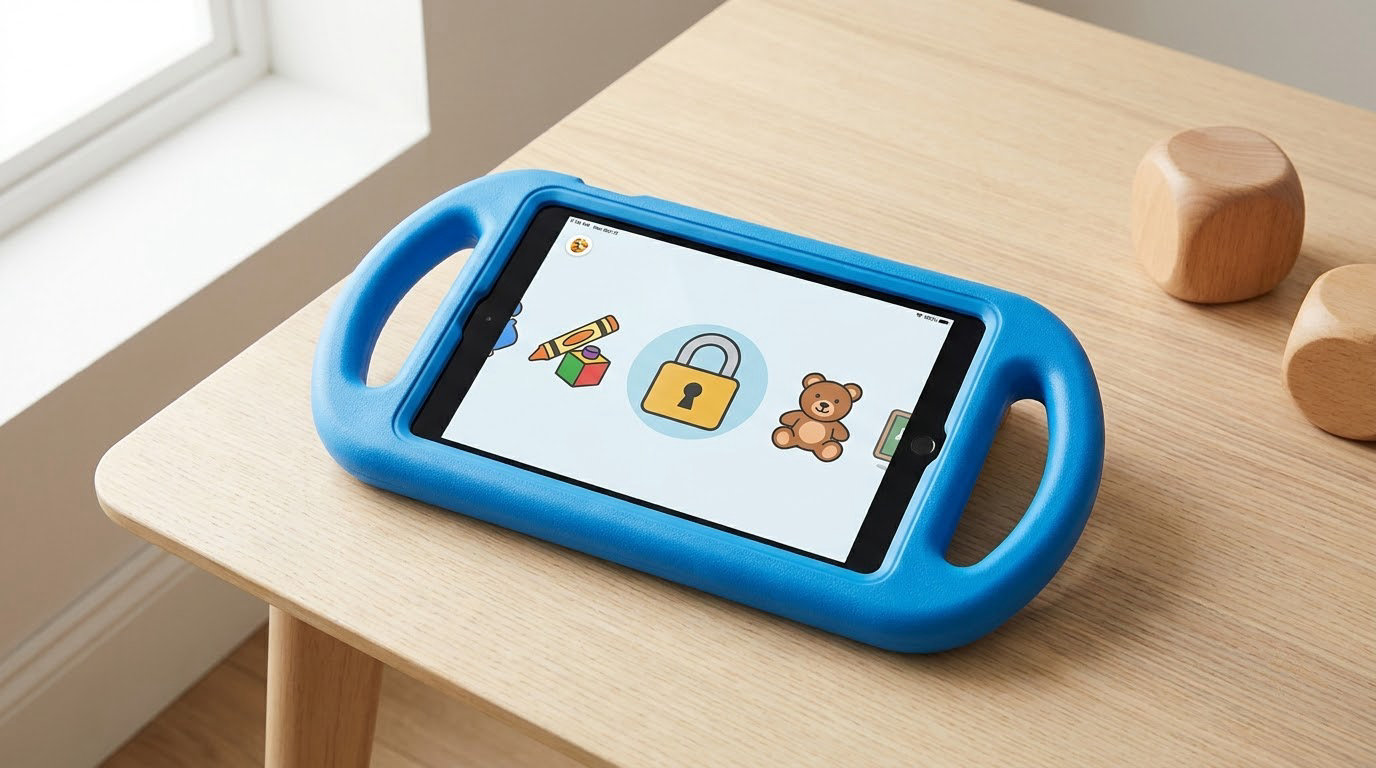
To lock down a tablet for a young child, you need five things working together: a dedicated child account, a passcode the child cannot guess, content and purchase restrictions, a daily screen time limit with a warning before it ends, and — under about age four — a single-app kiosk mode so the tablet cannot be navigated anywhere else. On a familiar tablet, that takes 30 to 45 minutes. On a brand-new one, allow an hour.
The part most guides skip is what happens after the settings are on. A young child’s tablet is a full web browser with a card attached, and default settings ship wide open. The settings are honestly the easy half.
These are the exact menu paths I use, last checked in 2026. Apple and Google both move things around between releases, so if a label differs slightly on your device, the setting you want is usually one level up or one level down.
What parental controls actually do is simpler than the marketing suggests: they let you decide which apps install, which websites load, how long the screen stays on, whether your child can spend money, and who they can talk to. Everything else is detail.
Table of Contents
- What You Need
- Step-by-Step: How to Lock Down a Tablet for a Young Child
- How to lock down a tablet for a young child on iPad
- How to lock down a tablet for a young child on Android
- How to lock down a tablet for a young child on Kindle Fire
- Settings to Switch On by Age
- Common Mistakes
- Frequently Asked Questions
- Can my child turn off Screen Time or the parental controls?
- Is a daily screen time limit alone enough for a 3 year old?
- How do I lock a tablet to just one app for a toddler?
- Do the free parental controls on a tablet actually work?
- Why does my child get so upset when screen time ends?
- Should I reset a second-hand tablet before locking it down?
- Conclusion
What You Need

Before you open a settings menu, gather these. It saves twenty minutes of half-finished configuration.
- The tablet itself and its charging cable, plus the wall plug it normally lives on.
- The OS version. On iPad: Settings, then General, then About. On Android: Settings, then About phone or About tablet, then Android version. On Fire: Settings, then Device Options. Menu names below match current releases.
- A caregiver account with the password and recovery email you actually check. You will need this on the child’s device more than once.
- A passcode or PIN you can type fast and your child has never seen. Never your birth year, house number, or a repeated digit like 1234.
- The child profile, created on the tablet rather than on your phone, so it is properly attached to the account.
- A written list of the specific apps and websites you are happy with. This is the part people skip, and it is the part that decides whether the lockdown works.
If the tablet is second-hand, gifted, or came back from a relative, factory reset it first. Settings from a previous owner, including their content PIN, can sit underneath yours and undo your work at a moment you are not watching. Wipe it, sign in fresh, then lock it down.
Do not buy a paid parental control app yet. For children under about 10, the free built-in controls on every major platform cover apps, content, purchases and time limits. Paid tools mostly add monitoring depth, which matters more for teenagers.
Step-by-Step: How to Lock Down a Tablet for a Young Child
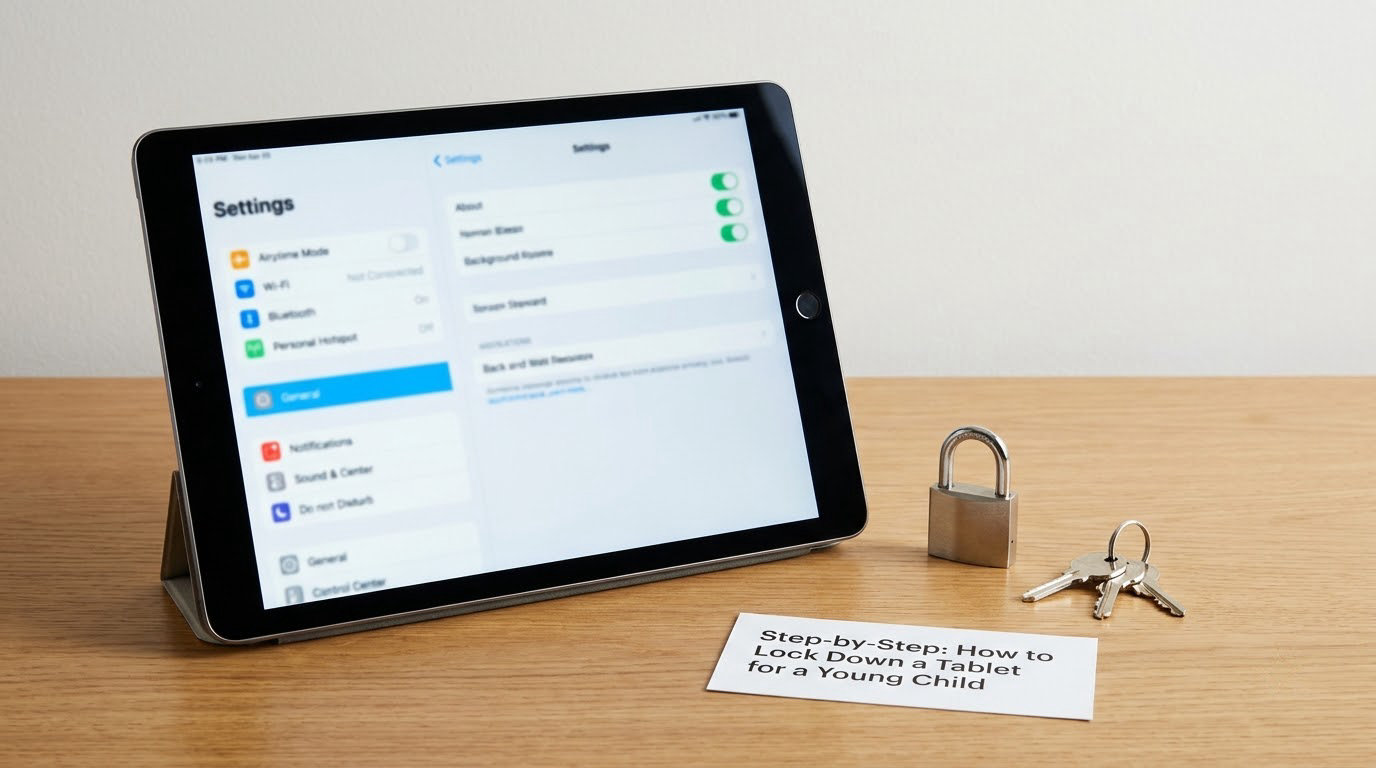
Work in this order. It matters, because each layer depends on the one before it — you cannot set app limits for a child account that does not exist yet, and you cannot test a lockdown on an account you have not signed out of.
- Reset if the device is not brand new. On iPad: Settings, General, Transfer or Reset, Erase All Content and Settings. On Android: Settings, System, Reset options, Erase all data. On Fire: Settings, Device Options, Reset to Factory Defaults.
- Create the child account on the tablet. Do it from the tablet’s own setup or Settings menu, not remotely, so the account is bound to the device.
- Set the passcode or Screen Time passcode. This is the key to every other setting. Set it before you change anything else.
- Turn on content and privacy restrictions. Age rating for apps, movies, shows and web content, plus the in-app purchase lock.
- Set app limits and a daily total, then add a schedule with downtime so the cutoff happens automatically.
- Turn on purchase restrictions. In-app purchases, free trials without a password, and subscription renewals.
- Close the permission gaps. Camera, microphone, location sharing, and communication limits so the child cannot add a contact or start a video call.
- Filter the browser. Block the sites you did not choose, force safe search, and decide whether YouTube is available at all.
- Set the warning. Five minutes of heads-up before the limit ends is the single setting parents tell me prevents the shutdown tantrum.
- Test it with your child watching. Sit down and try to get out. If you can get out, they will too.
The test step matters more than it sounds. A five-year-old who has watched you unlock a screen forty times knows the pattern of the first digit.
How to lock down a tablet for a young child on iPad
Apple puts almost all of this under Screen Time, and it is genuinely the tightest free setup of the three platforms.
Start in Settings, then Screen Time, then Screen Time for the child account. Set a Screen Time passcode here, separate from your device passcode, so the child cannot change limits by guessing one code.
Under Content and Privacy Restrictions you will find four toggles:
- App Limits adds per-app categories, a daily total, and a schedule.
- Always Allowed controls which apps stay live past a limit. Keep phone, messages and the camera off this list for a young child.
- Communication Limits restricts who can be called or messaged.
- Content and Privacy Restrictions covers purchases, age ratings, web content and Siri.
Inside Content and Privacy Restrictions, turn off In-App Purchases, and set the Content Rating to the age group you are actually comfortable with. For a four-year-old that is 4+, which is stricter than the age rating most parents assume.
Then set Downtime under Screen Time. Choose a start and end time, pick the apps you want excluded from the schedule if any, and enable it. This is the setting that locks the tablet at bedtime without anyone arguing about it.
For apps specifically, open App Limits, tap Add App Limit, pick the app or category, set a time limit and a daily total. For a young child, per-app limits are easier to enforce and easier to explain than one big daily number.
For web filtering: Settings, Screen Time, Content and Privacy Restrictions, then Safari under Web Content. You can allow a small list and block everything else. Turn on Limit Adult Content, and choose Search under Safe Search with Strict filtering enabled.
Turn off Siri Suggestions and the ability to buy with Siri. Voice assistants are a real bypass, because asking a phone out loud to do something takes no dexterity at all.
For a child under four, use Guided Access. Settings, Accessibility, Guided Access. Open the app you want and only that app, triple-click the Home button (top-right corner on a Face ID iPad), and choose Start. Touch, the Home button and the volume buttons go dead until you end it with the same triple-click and the passcode. Parents call this the road-trip setting for a reason: it is the cleanest lockdown on any tablet, and it takes about fifteen seconds to start.
How to lock down a tablet for a young child on Android
Android splits this across two layers. Settings on the tablet itself, and Google Family Link on your phone for the remote parts. You need both.
Open the Family Link app on your parent device and follow the prompts to create a child account through Google. Choose the youngest option rather than skipping it — the under-13 setup restricts YouTube and content rating in ways the older setup does not.
On the child’s tablet, Google Play Store, then your profile icon top-right, then Settings, then Family. Enter your parent PIN. That PIN is separate from the device PIN, which is exactly what you want.
Set the content rating here: Google Play Store, profile icon, Settings, Family, then Content Restrictions, then set the highest rating allowed. Turn on purchases, including the in-app purchases setting, so nothing can be bought without your parent PIN.
For the daily total: Settings, Digital Wellbeing, then Screen Time, then the chart icon to set daily limits. Set app timers individually rather than only a global limit, so the child cannot simply move to a different app to make up the time.
For bedtime, open Digital Wellbeing, Bedtime, set the schedule, pick the screens you want blocked, and enable Do Not Disturb. This is Android’s equivalent of Downtime.
Close the permission gaps: Settings, Apps, then the app, then Permissions. Turn off Camera, Microphone and Location. Under Special app access, check Location access and confirm nothing has been granted that the child did not need.
For app installs you will have approved in advance, turn off Install unknown apps across the board. Settings, Apps, then Special app access, then Install unknown apps. Every one of those should say Denied.
For the browser: Chrome, then the three-dot menu, Settings, Site settings, then Content settings. Set a site setting for insecure content, force Google Safe Search on, and add the specific sites you want blocked. Safe search on its own is not enough for YouTube, so decide explicitly whether it is available.
For a single-app lock on Android, use screen pinning. Open the app you want, tap the three-dot menu, then Pin. Touch is confined to that app. On many devices you have to enter your device PIN to unpin, which is the whole point. Samsung devices also ship a Secure Folder, and you should check that it is off — a Secure Folder creates a space that Family Link cannot see.
How to lock down a tablet for a young child on Kindle Fire
Fire tablets are the most common tablet in a lot of homes with a two-year-old, partly because they are cheap and mostly indestructible. They also ship with parental controls on, which is helpful, but the defaults are permissive in specific ways worth fixing. Labels shift between Fire OS versions, so the setting names may read slightly differently on an older device.
Open Amazon Kids or the Settings app, then Parental Controls. Amazon asks for a password the first time. Use a real password, not the four-digit code, so that a child who guesses the PIN is stopped.
Inside Parental Controls, choose which child profile this is. Amazon Kids profiles carry their own age range, and that age range drives content filtering across the store, the browser and Amazon Kids. For a young child, set it to the youngest bracket, not their real age.
Then switch on the two things most families miss. Turn off purchases entirely, including in-app purchases, so nothing can be added to a Kids profile. Amazon’s store is aggressive with prompts, and the gap between Free Time starting and a subscription beginning is where the money goes.
For time limits, open Amazon Kids and tap Free Time. Set a duration and a window of allowable hours. Set it inside the app rather than at the device level, because that is the only method that actually locks the screen.
For the browser, open the Silk or Amazon Kids app, then its settings, and set the web content restriction to block everything outside the sites you listed. Silk and Amazon Kids are separate browsers with separate settings, and changing one does not change the other. That is the most common gap I hear about.
Amazon Kids is genuinely good with a two-year-old on its own. Parents praise it for exactly that, and complain mainly about the upsell pressure for more content, which the purchase lock does solve.
Settings to Switch On by Age
Age is a better guide than device type. A two-year-old and a nine-year-old can use the same tablet and need completely different settings.
| Age | Account and apps | Content | Time | Communication |
|---|---|---|---|---|
| 2 to 3 years | Single-app kiosk mode only; no App Store or Play Store access | Whitelisted apps only; web browsing off | 15 to 30 minutes, parent-present | Camera, microphone and location off |
| 4 to 6 years | Child account; app installs approved by parent one at a time | Age rating set lowest; Safari or Chrome restricted to an allow list | 45 to 60 minutes with a five-minute warning; downtime nightly | Communication limits on; no added contacts |
| 7 to 9 years | Child account with app approvals required | Age rating one or two bands up; safe search forced | 1.5 to 2 hours, scheduled downtime for school nights | Messaging restricted to parent-approved contacts |
| 10 and up | Child account; app installs still require approval | Age rating by maturity, reviewed periodically | Negotiated window, still scheduled rather than open-ended | Communication limits reviewed as they start asking for contact |
These three platforms overlap more than their names suggest. All three block apps, block purchases and schedule downtime, so the differences are mostly in depth.
| Control | Apple Screen Time | Google Family Link | Amazon Fire Parental Controls |
|---|---|---|---|
| Per-app time limits | Yes, per app or category | Yes, per app | Yes, within Amazon Kids |
| Automatic daily schedule | Downtime, up to multiple windows | Bedtime and focus mode schedules | Free Time allowed window |
| App install approval | Ask to buy, plus content rating | Yes, parent approves in the app | Yes, via the Amazon Kids profile |
| Purchase lock | In-app purchases off at the system level | Authentications required for purchases | Purchases disabled on the profile |
| Web filtering | Allow list or block list, safe search | Site settings, safe search | Web content restriction per browser |
| Messaging limits | Yes, by contact and group | Contact approval, app-level limits | Limited, mostly by profile restriction |
| Location sharing | Yes | Yes | Basic, through the Amazon app |
| Single-app lock | Guided Access, very reliable | Screen pinning, needs PIN to unpin | Not supported; use Amazon Kids only |
| Cost | Free | Free | Free, with store upsell pressure |
Common Mistakes
Setting the limits on your own account. This is the big one. If the tablet is signed in to your profile, everything you configure applies to you, and the child can change it or hand it back to you logged in. Create the child account and do everything from there.
Relying on a time limit alone. A time limit controls duration, not content. A thirty-minute session that is fully open web is still fully open web. Pair every time limit with content restrictions.
Forgetting in-app purchases. The setting often sits in a different place from the app store restrictions. On iPad it is inside Content and Privacy Restrictions. On Google Play it is the Authenticate for purchases toggle. On Fire it is inside Parental Controls. Leave one open and a child can buy things inside an app you already approved.
Choosing a passcode your child has seen. Your tablet unlock pattern, your phone PIN, the year of your child’s birth. A child who has watched you type for a month knows the first digit and only has to guess three more. Set a Screen Time or parent passcode that is different from anything you type daily.
Blocking YouTube at the app level only. Block YouTube and the child opens a browser and finds it. Either block youtube.com at the router, or restrict web content to an allow list so the browser cannot reach it at all.
Not checking what was already installed. Before you tighten things, scroll the full app list yourself. On a used tablet there may be games, browsers and file managers you did not put there.
Never testing the lockdown. Hand it over and try to leave. If you can reach the settings, or open a blocked site, or buy something, they will eventually do the same.
And the one nobody plans for: what happens at the moment the screen locks. The parents I talk to say the settings were never the hard part. The hard part is the two minutes after the timer ends.
Turn on a five-minute warning and turn it into a routine, because an unannounced cutoff reads as a loss rather than a boundary. Say the timing before it happens, not after. When the warning fires, keep the language short and identical every time: “Time is up. Tablet goes in the basket. You can choose what we do next.” Do not add reasons and do not negotiate in the moment.
For autistic and neurodivergent children specifically, predictability is the setting that does the most work. An abrupt screen cutoff is a sensory and emotional trigger, not a reward boundary, and the escalation you get back is not defiance. When you can predict it, warn twice, keep the wording fixed, and never move the time limit because of a meltdown — moving it teaches that escalating harder changes the outcome.
One more layer worth adding: blocking sites at the router costs nothing, applies to every device in the house, and cannot be undone from the tablet. Parents find this on their own in forums and then wonder why no guide mentioned it. It is the only filter a small child cannot switch off.
Frequently Asked Questions
Can my child turn off Screen Time or the parental controls?
Not on their own, if you set it up properly. On iPad, Screen Time has its own passcode separate from the device passcode, so a child cannot disable it without that code. On Android, the Family Link parent PIN gates every control in Google Play. The real risk is a child who has watched you type the passcode, which is why it should be a code you never use to unlock the tablet itself. Check that nothing sensitive is in your recent unlocks.
Is a daily screen time limit alone enough for a 3 year old?
No. A time limit controls how long, not what is available during that time. For a 3 year old, pair a short limit with a restricted child account, content and privacy restrictions set to the lowest age band, in-app purchases disabled, and a single-app lock such as Guided Access on iPad or screen pinning on Android. At that age, a 15 to 30 minute window with one or two approved apps protects far more than an hour of open browsing.
How do I lock a tablet to just one app for a toddler?
On iPad, open the app you want, go to Settings, Accessibility, Guided Access, and enable Guided Access. Return to the app and triple-click the Home button, then tap Start. Touch and the buttons stop working until you triple-click again and enter the passcode. On Android, open the app, tap the three-dot menu and choose Pin, then enter your device PIN to unpin. On Kindle Fire there is no equivalent, so use Amazon Kids as the only enabled app instead.
Do the free parental controls on a tablet actually work?
For children under about 10, the built-in controls are usually enough. Screen Time on iPad is the most capable of the three, Family Link on Android covers apps, purchases and time well, and Fire parental controls work fine when you disable purchases and restrict web content in both browsers. Paid third-party apps add deeper monitoring and text reporting, which tends to matter more for teenagers than for preschoolers. Set up the free layers first and only consider paying if you have a specific gap in mind.
Why does my child get so upset when screen time ends?
Because an unexpected cutoff feels like something being taken away rather than a boundary they helped set. Most of the difficulty is predictability, not the limit itself. Set a five-minute warning, name the ending time when you hand the tablet over, and use the same short sentence every time. Do not extend the limit during a meltdown, because that teaches that escalating harder changes the result. For autistic children this matters more, since a sudden change with no warning is a common trigger for a full meltdown.
Should I reset a second-hand tablet before locking it down?
Yes, always. Settings and accounts from a previous owner can sit underneath yours, including their content PIN, and they may reappear at a moment you are not watching. Do a factory reset, sign in fresh with your own caregiver account, then create the child account and apply restrictions in that order. This applies to hand-me-down family devices and tablets bought from refurbishment sellers just as much as it does to a relative’s old iPad.
Conclusion
Start with one action tonight: create a dedicated child account on the tablet, set a parent passcode you have never typed in front of them, and switch on the strictest content and purchase settings that still let your child do the things they actually use the tablet for.
Then hand it over and try to break out. If you can get out, they will too.
And set the ending before you set the limit. A warning you both expect costs far less than a cutoff they did not see coming.
Review it every few months. Children grow into new settings faster than most parents expect, and a lockdown that worked at four is usually too tight at seven.